
An Excel test case is written for a person. A person fills the gaps: they know which pump, what “high priority” means, and what “correct” looks like. Automation fills nothing in. Most of the work of automating a spreadsheet test case is making it explicit, and that work makes it a better manual test as well.
What you will have at the end: one test case rewritten so it can be automated, its test data in a sheet of its own, and a short list of the steps that should stay manual. Steps 1 to 3 work with any tool. Steps 4 and 5 show how it goes in AutoTestX.
1Start with the Excel test case
Here is a test case like the ones in most Maximo teams’ workbooks: create a work order. It has an ID, a precondition, steps, some data and expected results. A tester who knows the system can run it. It’s on the1. Before cleanup sheet of the template.
| Step | Action | Test data | Expected result |
|---|---|---|---|
| 1 | Log in to Maximo | Logged in | |
| 2 | Go to work orders and create a new one | New work order opens | |
| 3 | Fill in the details and save | Pump, Bedford, high priority | Work order is saved |
| 4 | Verify the work order is correct | Everything is correct | |
| 5 | Check the email notification | Supervisor gets an email |
Read it as a machine would. Which work order application? Which asset is “Pump”? What does “saved” look like on the screen? What is “correct”? Steps 2 to 5 each need a person to decide something, and step 5 isn’t in the browser at all.
2Clean up ambiguous instructions
Go through the case line by line and fix five kinds of problem. Each fix makes the test case shorter to read and harder to misread.
| Problem | In the sheet | Rewrite it as |
|---|---|---|
| Two actions in one step | “Fill in the details and save” | One row per field, then one row for Save. When a run fails, the report names the exact field. |
| Data hidden in prose | “Pump, Bedford, high priority” | Real values in their own columns: asset 11430, location BR430, priority 2. “High” means something different on every team. |
| A check that can’t fail | “Everything is correct” | The fields that prove it: a new work order number exists, status is exactly WAPPR, the asset is still the one you entered. |
| An unstated starting point | “User has access” | Which user, which site, and which records must exist and in what state. |
| A step outside the browser | “Check the email notification” | Marked No, manual, with the reason. Not every step should be automated, and saying so is part of the test case. |
Three rules cover most rewrites:
- One action per step, using the words on the screen in quotes: Click “New Work Order”.
- Every expected result is a value you can compare: a status, a number, a message, exactly as it appears. If you can’t say what would make it fail, it isn’t a check.
- For anything that should disappear, first check that it was there. Otherwise a step that looks in the wrong place passes for the wrong reason.
Here is the same test case after cleanup. It’s on the 2. After cleanup sheet, with an automation note on every row.
| Step | Action | Test data | Expected result |
|---|---|---|---|
| 1 | Open the application. | | The sign-in page is shown |
| 2 | Sign in with MAXIMO_USER and MAXIMO_PASSWORD. | secrets | The Start Center is shown |
| 3 | Open the “Work Order Tracking” application. | | The work order list is shown |
| 4 | Click “New Work Order”. | | A new work order, status WAPPR |
| 5–9 | Type the description, asset, location, work type and priority into their fields. | data.description … data.priority | The asset’s description appears next to it |
| 10 | Click “Save Work Order”. | | The “Work Order” field holds a new number |
| 11 | | Status is exactly data.expected_status | |
| 12 | | The “Asset” field still shows the asset | |
| 13 | Check the supervisor’s notification email. | | No, manual: outside the browser |
3Prepare for automation
Before any tool sees the case, sort what is left into four piles. This is the step people skip, and the reason automated tests built from spreadsheets break in their first week.
Every value a person would type goes to the Test data sheet, one row per run. The steps refer to it by column name. Three rows give you three work orders from one test.
description, asset, location, worktype, priority, expected_statusWhat must be true before step 1: the user’s security group, the site, an asset that exists and is operating. Write them as preconditions, and check the important ones as steps.
Asset 11430 exists at BEDFORD and is operatingAnything a later step needs that only exists once the test runs, such as the new work order number. Mark it “remember as …” so the automation keeps it.
Remember the work order number as woNumberEmail, printing, a CAPTCHA, a report someone reads for sense. Keep these as manual checks with a reason, or replace them with something checkable, such as an API call.
Notification email: No, manualThe data pile becomes the 4. Test data sheet: a header row of column names, then one row per run. Keep the column names simple (letters, digits and _), because they become names in the test. Format number-like columns such as asset numbers as text, so Excel doesn’t change them.
Passwords never go in the workbook. The test refers to them by name (MAXIMO_USER,MAXIMO_PASSWORD), and the values live in the test environment’s secrets.
The values in the example (asset 11430, location BR430, site BEDFORD) come from Maximo’s demo data. Replace them with records that exist in your own test environment.
4Bring it into AutoTestX
First, what AutoTestX does not do: it doesn’t read test cases from a spreadsheet. There is no button that turns your workbook into tests, and a tool that claims to do it still has to guess at everything you fixed in step 2. What it does read from Excel is test data. Here is the route for one test case, start to finish.
a. Upload the test data
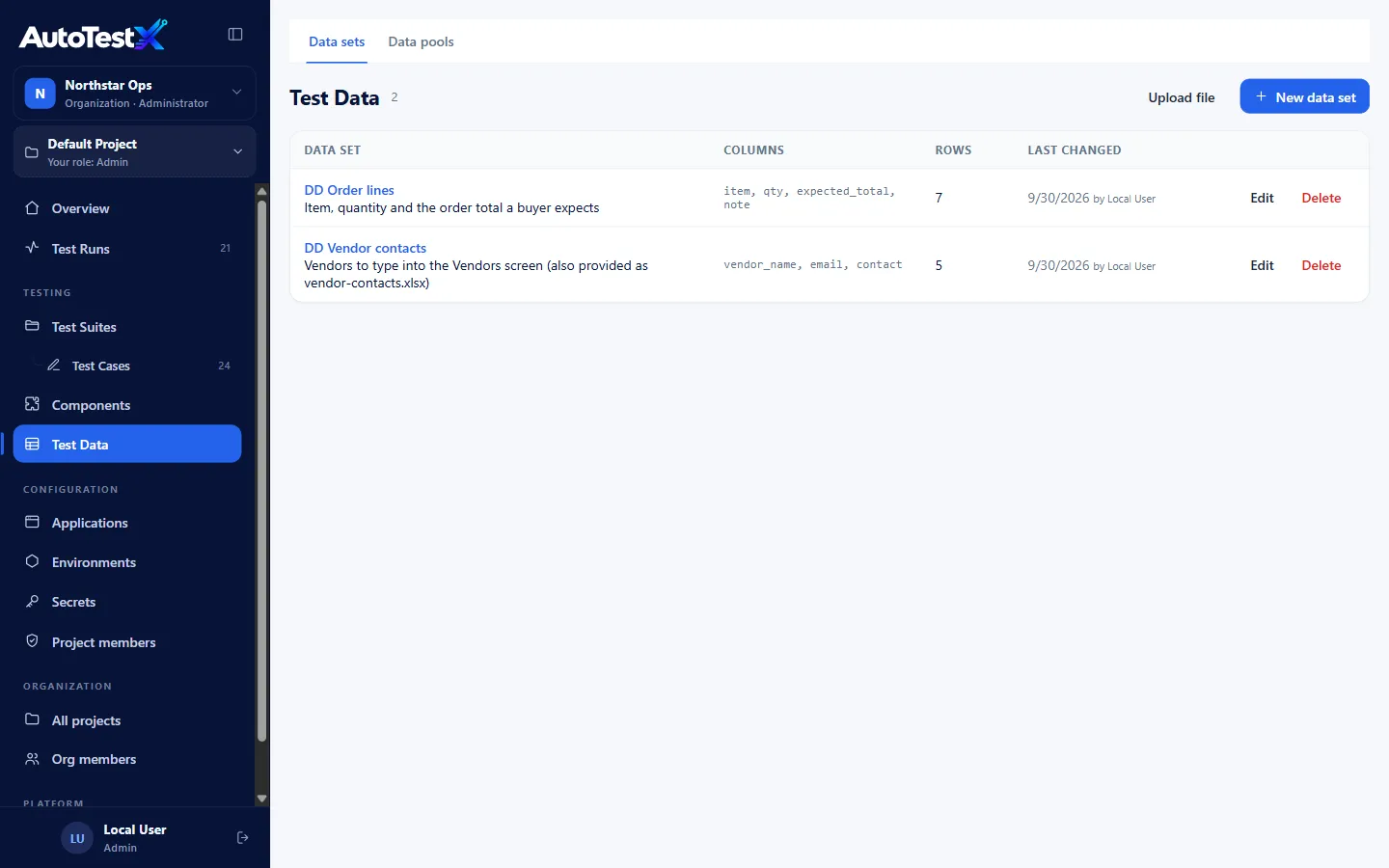
In Test Data, choose Upload file and pick the data file. The upload reads the first worksheet of an .xlsx (or a CSV), and its first row must be the column names, so use the work order test data file, which is the Test data sheet already on its own. Each column becomes a value a test can use: the asset column is{{data.asset}}.
b. Create the test and bind the data
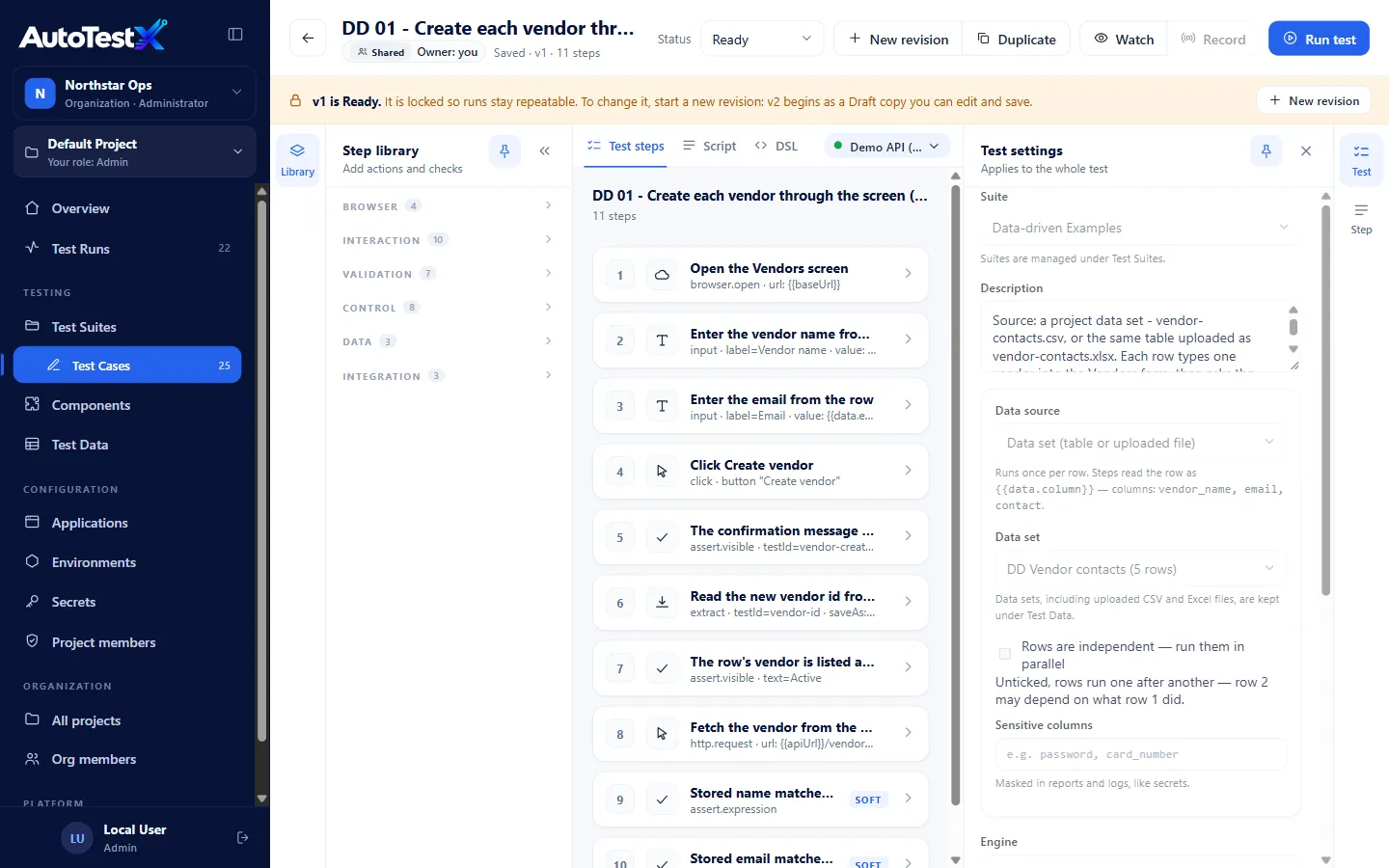
Create a test named after the spreadsheet row, TC-WO-001 Create a work order for an asset, and tag it TC-WO-001. Choose the environment it runs against, with theMAXIMO_USER and MAXIMO_PASSWORD secrets set. Then in Test settings → Data source, choose the data set. The test now runs once per row: three rows, three work orders.
c. Turn the steps into test steps with Write with AI
In the editor, choose Write with AI and paste the cleaned-up actions and expected results, one per line, with every expected result written as a Check that …. This is the2. After cleanup sheet with the manual step left out:
Open the application.
Sign in with MAXIMO_USER and MAXIMO_PASSWORD.
Open the "Work Order Tracking" application.
Click the "New Work Order" button.
Check that the "Status" field shows exactly "WAPPR".
Type {{data.description}} into the "Description" field.
Type {{data.asset}} into the "Asset" field.
Type {{data.location}} into the "Location" field.
Type {{data.worktype}} into the "Work Type" field.
Type {{data.priority}} into the "Priority" field.
Click the "Save Work Order" button.
Remember the value of the "Work Order" field as woNumber.
Check that woNumber is not empty.
Check that the "Status" field shows exactly {{data.expected_status}}.
Check that the "Asset" field shows exactly {{data.asset}}.
Choose Generate steps. Each proposed step shows which line it came from, and notes at the top list anything it didn’t turn into a step. Read them: a note usually means a line is still ambiguous, and the fix is to reword that line, not to regenerate. Untick anything wrong, then Add steps.
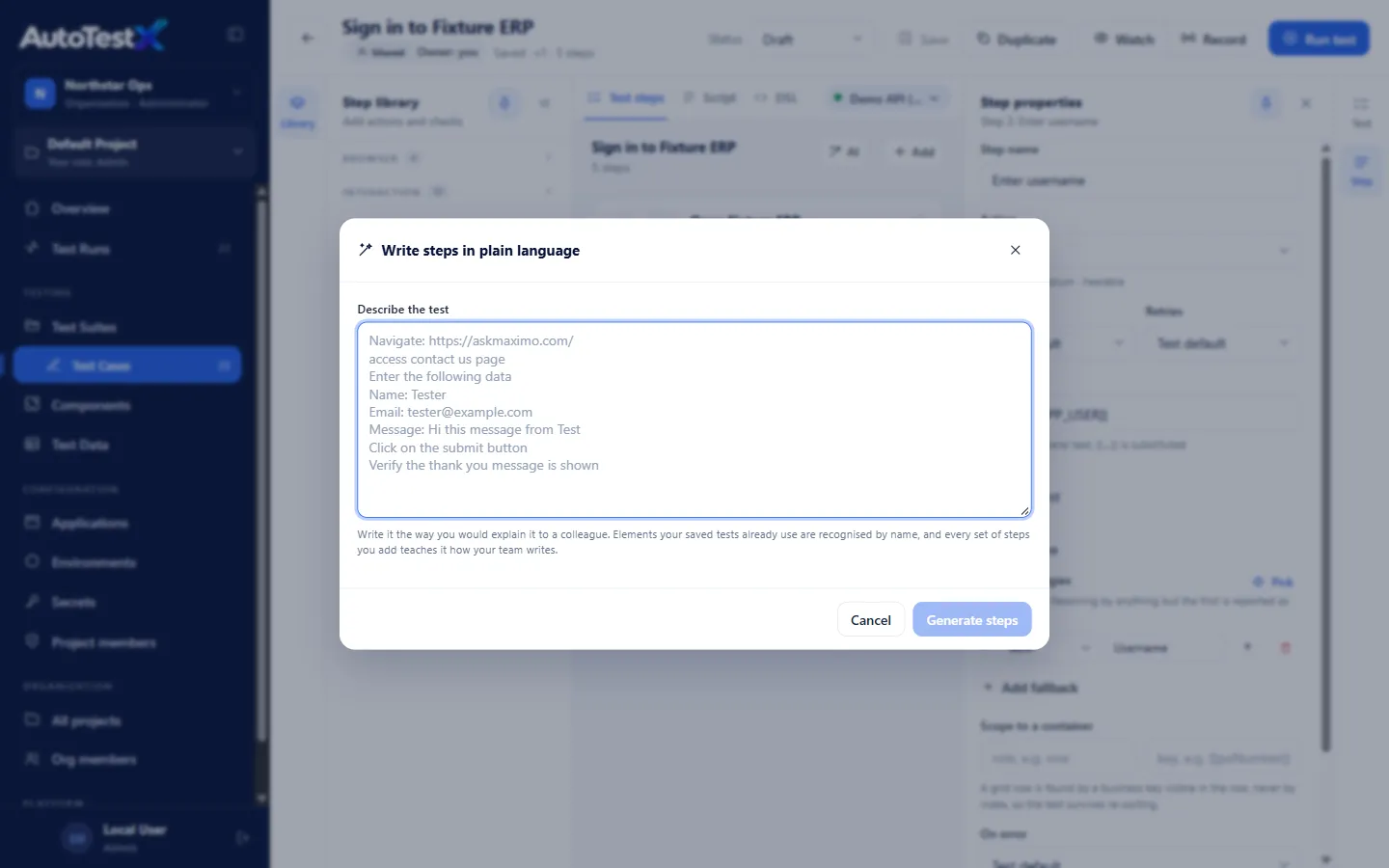
The writer knows the elements your project’s saved tests already use. For anything new to the project, its target is a best guess: use Pick to point at the real field once. ThenRun the test and Save. Steps written by AI are always saved as aDraft first. A person runs and reviews them, and marks the test Ready in a second save.
Many test cases at once
For a whole sheet of cases, the documented route is an AI chat outside AutoTestX, with theprompt guide’s master prompt and itsconvert manual test cases variant. The chat writes one test file per case, keeping each case’s ID in the name and tags, and labels any step it can’t automate reliably with TODO-:
Convert each manual test case below into a separate AutoTestX test file.
Keep the test case ID in "name" and in "tags" (e.g. "TC-1042").
Each manual step becomes one or more steps with clear labels; each
"Expected result" becomes an assertion step.
If a step cannot be automated reliably (CAPTCHA, email, printing), mark it
with a TODO- label and explain why.
<paste test cases from Excel / Jira / TestRail>
Check each file with atx validate, then Import it on the Test Cases page. Imported tests come in as Drafts too. Open each one, Pick anything marked TODO- or never used before, run it, then mark it Ready. The cleanup in steps 2 and 3 matters even more here: the chat can only be as exact as the sheet you paste.
5Review results and maintain the test
A data-driven run is one run with one line per row: the inputs it used, whether it passed, and the step it failed at. Every step has a screenshot, and every check shows the expected and the actual value. A failed row never stops the others, and the run is green only if every row passed. An empty data set is never green.
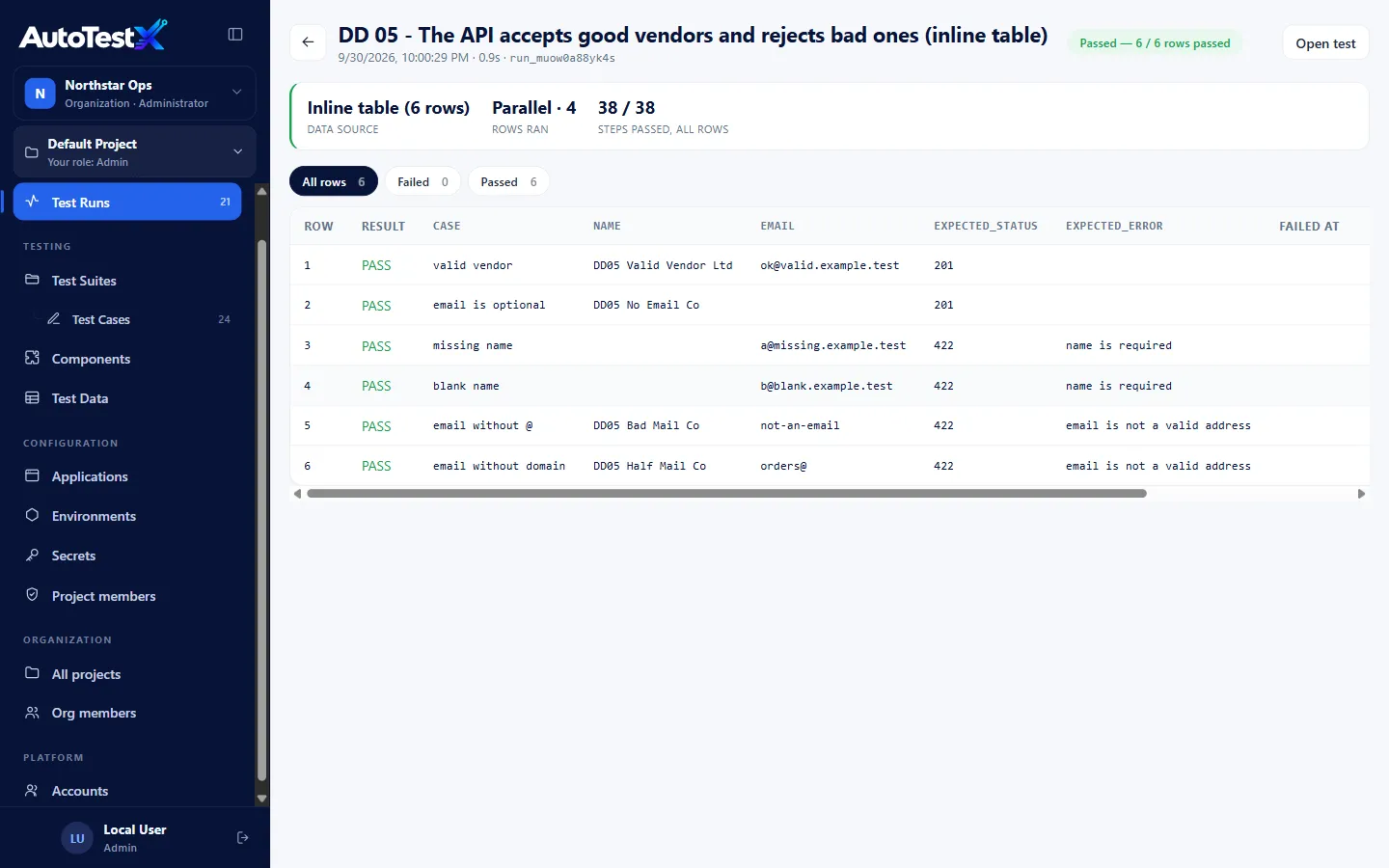
When a row fails, read it in this order:
- The failed step and its screenshot. Was the screen what the step expected?
- Expected and actual. “Expected WAPPR, got APPR” is a workflow change or a defect. “Element not found” is usually the screen changing, not the application breaking.
- The row’s inputs. One row failing while the others pass usually points at the data: an asset that is decommissioned in this environment, say.
When the workflow changes, change the test, not the spreadsheet. If a field was renamed or moved,self-healing proposes the fix with its evidence for someone to approve. If the process changed (a new required field, a new status), edit the steps in the editor, and every saved version is kept with who changed it and why. Once a case is automated, mark its row in the workbook “Automated: TC-WO-001” so nobody maintains two copies. The test ID ties them together.
The checklist
Before a test case is ready to automate, in any tool. It’s also the 5. Checklist sheet of the template.
- Every step is one action, using the words on the screen in quotes.
- Every expected result names an exact value or text, never “correct” or “works”.
- Test data is in its own sheet, with simple column names (letters, digits, _).
- No passwords, tokens or personal data anywhere in the workbook.
- Preconditions say which records must exist, and in what state.
- Every “is gone” check has an “is there” check before it.
- Steps outside the browser are marked manual, with the reason.
- Values a later step needs are marked “remember as …”.
- The test ID is kept, so the automated test and its report map back to the row.
Start on the Free plan, upload the work order test data, and point the steps at your own Maximo test environment. No credit card.