
Maximo changes more often than its upgrade calendar suggests. An automation script, a new domain value, a security group or an iFix can each break a workflow nobody touched, and the defect usually shows up somewhere else: in the PO that never routes for approval, or the work order whose costs don’t add up.
A regression checklist is how a team answers “did this change break anything?” the same way every time. This guide builds one in six steps. They work for manual testing and for automation alike. Theworkbook has every sheet used here, with Maximo examples.
1List workflows, not screens
Start with what the business does, from the first click to the last record it changes. “Create a work order” is a screen. “Raise a corrective work order, approve it, report labor and complete it” is a workflow, and it touches Work Order Tracking, labor rates, approval and costs on the way.
Most Maximo teams find their first list in the areas below. Ask the people who use Maximo every day what they would notice first if it broke. Write each one on its own row with an ID, on the1. Workflow inventory sheet.
| Area | Typical workflows |
|---|---|
| Work Management | Corrective work order: create, approve, report labor, complete. Service request to work order. Work orders generated from a PM. |
| Purchasing | Requisition to purchase order through approval workflow. Receiving into a storeroom. Invoice matched to a receipt. |
| Inventory | Issue to a work order. Transfer between storerooms. Reorder. |
| Assets | Move an asset. Meter readings that trigger a PM. |
| Security | A user who must not approve, edit or see something, and can’t. |
| Integrations | Every message that leaves or enters Maximo: finance, ERP, GIS, SCADA. |
Don’t forget the two areas most often left out: security (a user who must not be able to do something) and integrations (the messages that fail quietly in a queue, not on the screen).
2Score them into tiers
You can’t re-test everything after every change, so decide in advance what runs when. Score each workflow from 1 to 3 on three questions:
| Score | The question | 1 to 3 |
|---|---|---|
| Business impact | What breaks if this stops working? | 1 an inconvenience · 2 a team is blocked · 3 money, safety or compliance |
| Change exposure | How often do changes touch it? | 1 rarely · 2 sometimes · 3 scripts, workflow or integrations act on it |
| Frequency | How often is it used? | 1 monthly or less · 2 weekly · 3 daily |
The priority is impact × 2 + change exposure + frequency, from 4 to 12. Impact counts twice because a workflow used once a month that stops payroll still belongs at the top. The workbook calculates the score and the tier as you type.
The workflows the business can’t do without. Runs after every change and every night. Keep it under an hour.
WM-01 work order life cycle, PU-01 PR to PO, IN-01 issueImportant workflows with a workaround. Runs before every release to production.
WM-03 PM generation, PU-02 receivingEverything else worth keeping. Runs before fix packs and upgrades.
AS-01 asset move, IN-02 transferWorkflows nobody uses any more. Say so, so nobody keeps re-testing them.
A report replaced last yearCheck the result with common sense. If the Smoke tier takes a whole day to run, it won’t be run after every change, so move the least important workflows down to Core until it fits in an hour.
3Write exact checks
A regression test is only as good as what it checks. “The work order is saved” passes even when the workflow routed it to the wrong person. For each workflow, write down the values that prove it worked:
| Check | Not this | This |
|---|---|---|
| Status | “The work order is approved” | Status is exactly APPR, and the status history shows who changed it |
| Calculated values | “Costs are right” | Actual labor cost is 2 hours × the craft rate: exactly 180.00 |
| Related records | “The PO is created” | The PO has two lines, with the PR’s items and quantities |
| Messages | “An error is shown” | The message is BMXAA4129E, and the record was not saved |
| What didn’t happen | “The user can’t approve” | Approve is not offered, and the status is still WAPPR |
These go in the Exact checks column of the inventory. If your test cases are already in Excel, the Excel test case guide walks through rewriting one line by line.
4Organize a repeatable suite
A checklist is repeatable when anyone can run it next month and get a result that means the same thing. That comes down to three decisions, on the 2. Suite plan sheet:
- Group workflows by functional area (Work Management, Purchasing, Inventory), so a change to purchasing has an obvious suite to run.
- Know your test data. Assets, items and vendors can be reused run after run. A purchase order waiting to be received can only be received once. Write down which is which, and how single-use data is replenished before each run.
- Make every workflow stand on its own. If PU-02 (receiving) only works after PU-01 created a PO, one failure becomes two, and you can’t re-run one without the other. Give each workflow its own starting data.
Keep each workflow’s ID everywhere: in the checklist, the test name, the defect ticket. It’s what ties a failure back to the business process.
5Decide what runs when
Agree in advance which tiers each kind of change triggers, so nobody has to decide under release pressure. A starting point, also on the 3. When to run sheet:
| When this changes | Run |
|---|---|
| Automation script, escalation or workflow process | Smoke + the affected suite |
| Domains, conditional UI, Application Designer | Smoke + the affected suite |
| Security group or start center | Security + Smoke |
| Interim fix (iFix) or hotfix | Smoke + Core |
| Fix pack, feature pack or MAS update | Smoke + Core + Extended |
| Integration endpoint or mapping | Integrations + Smoke |
| Nothing (nightly) | Smoke |
The nightly Smoke run is the one teams skip and later wish they hadn’t. It catches data drift, expired passwords and environment problems on a quiet night instead of on release day.
6Document every run
A change board doesn’t want “testing passed”. It wants to know what ran, against which change, what failed, and who decided it was safe. One row per run on the 4. Run log sheet:
- What changed: the iFix, script or release, by name.
- What ran: the tiers and environment, with passed and failed counts.
- Every failure with its cause: a defect, a test that needs updating, bad data, or a known issue with its ticket number. A known failure that isn’t written down gets investigated again every run.
- The decision: Go, Go with risks, or No-go, and who signed it off.
- A link to the evidence: screenshots or reports an auditor can open later.
Running it in AutoTestX
Everything above works on paper. This is how the same checklist runs in AutoTestX, with what each feature needs.
Suites and tiers
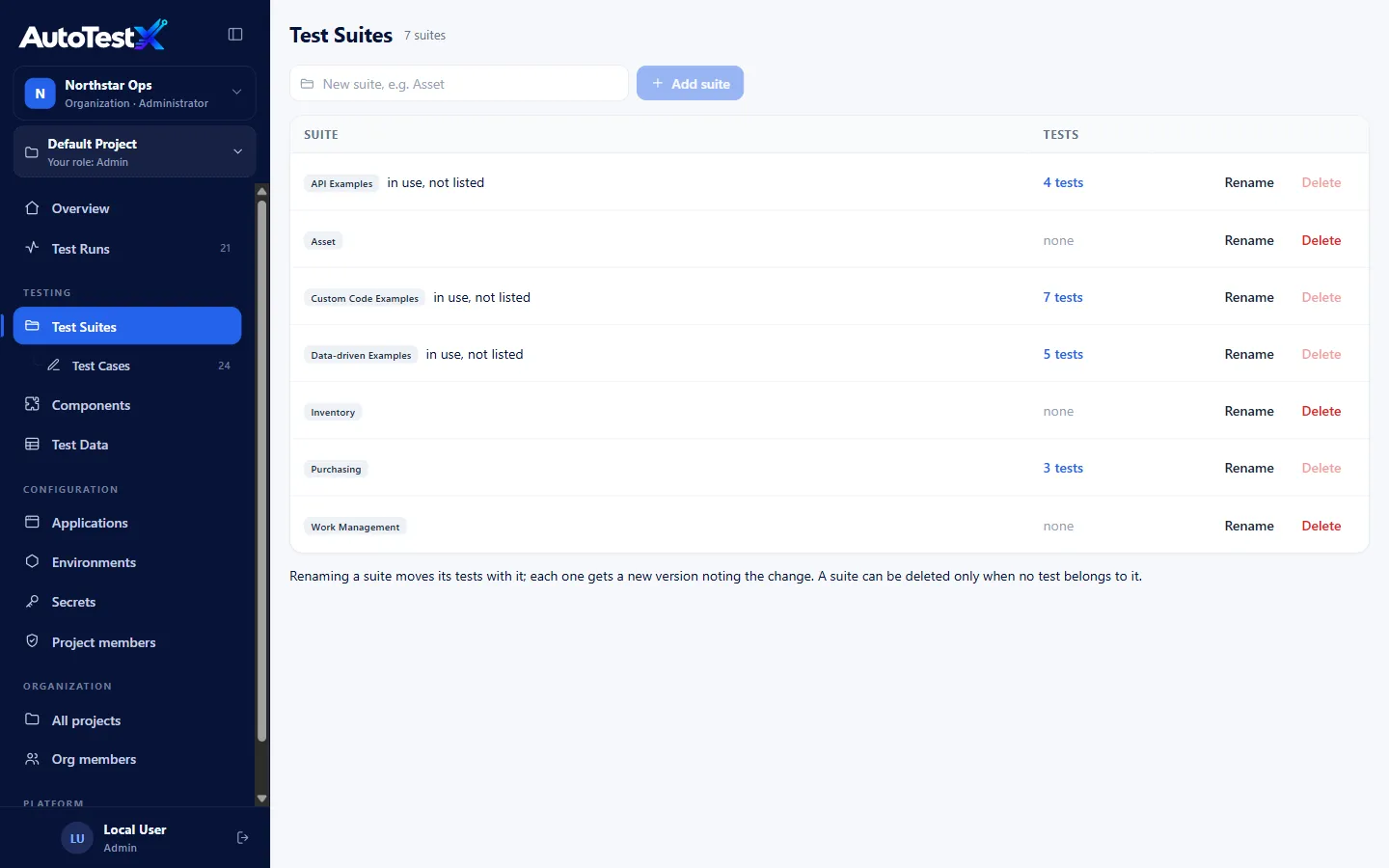
In AutoTestX, a suite is a functional area, and a test belongs to one suite. So put the Smoke-tier workflows in a suite called Smoke, and the rest in suites by area. A suite run runs every shared test in it against one environment and gives one answer, with a report for each test.
The nightly run
A schedule runs a suite on its own: daily on Free and Team, at any timing on Business and Enterprise. Scheduled runs include only tests marked Ready, so a test someone is still editing never fails the nightly run. A failed run emails the people you choose.
Single-use data
Keep reusable data in a data set, uploaded from Excel. Keep single-use records, such as POs waiting to be received, in a data pool: each run leases its own record, so two runs never receive the same PO.
Reading a failure
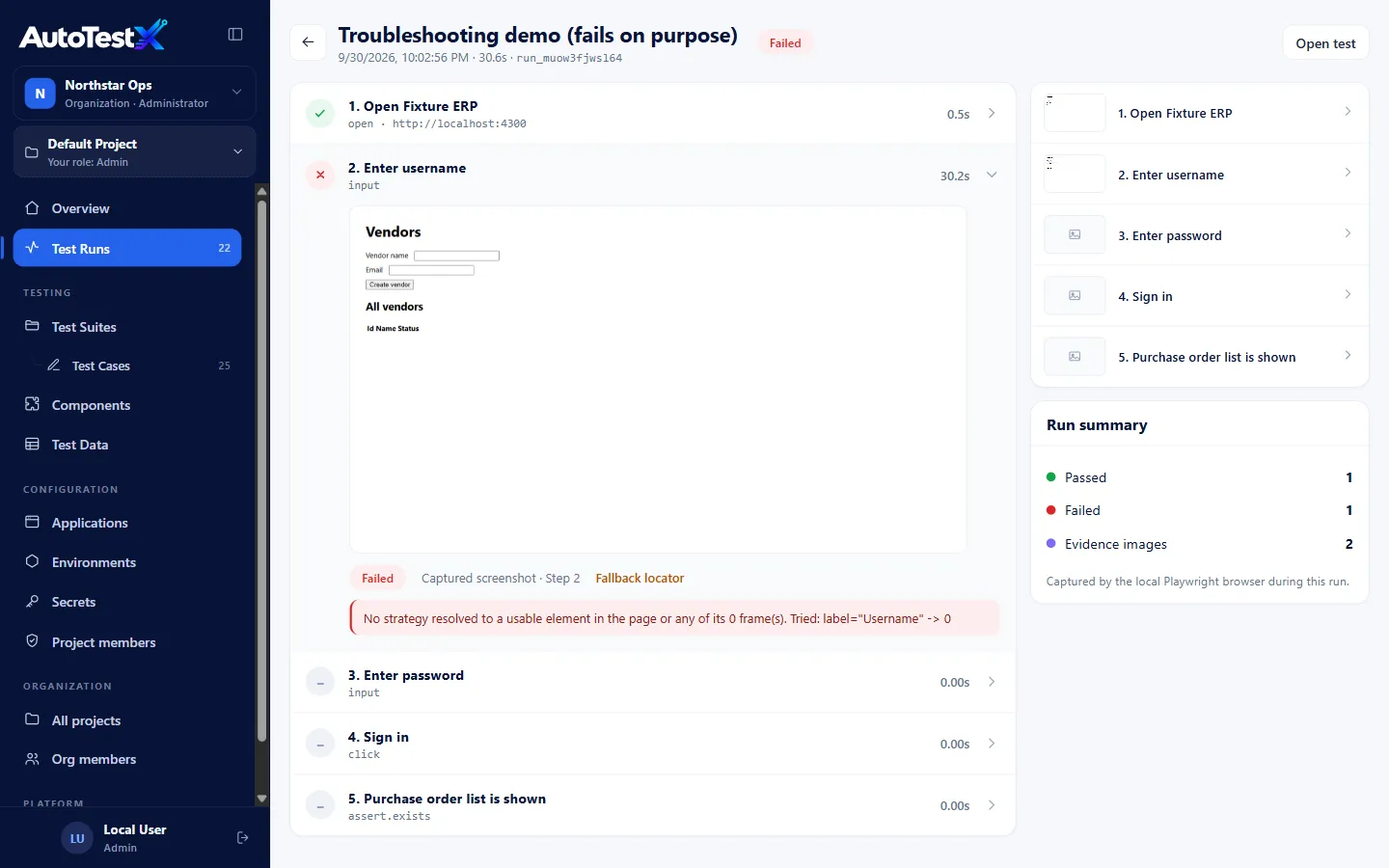
Every failed run gets a failure class from fixed rules. A Maximo BMXAA…Emessage makes it a Maximo business rule failure, so nobody “fixes” a test for what is really an application rule. A suite run with failures groups them into Likely causes: five tests failing on one server error are one problem, not five.
The decision and the evidence
Label suite runs with the change they tested: a deploy pipeline does it with --release, or record it once with atx deployed --env "Maximo UAT" --release iFix-12345 (an API token, on Team and above). The release evidence report then recommends Go,Go with risks or No-go, with its reasons. On Business and Enterprise it also marks each failure as a Regression, New or Known against the release before, and downloads as a PDF with the screenshots inside, for the change board. The recommendation is advice: a person still decides.
Suite runs keep screenshots where they matter (failures and Screenshot steps), not after every step. See Test suites andreading reports in the documentation.
The checklist
What makes a regression checklist repeatable, in any tool. It’s also the last sheet of the workbook.
- Every workflow is written start to finish, across applications, not screen by screen.
- Every workflow has a score and a tier, and the Smoke tier finishes in under an hour.
- Every expected result is an exact value: a status, a quantity, a cost, a message code.
- Each suite says what test data it needs, and whether that data can be reused.
- Single-use data (POs to receive, records to approve) is replenished before each run.
- Every kind of change has a rule for which tiers to run.
- Known failures are listed with a ticket, so nobody re-investigates them every run.
- Every run is logged with its decision, who signed it off, and a link to the evidence.
- The checklist is reviewed after every release: retire what nobody uses, add what’s new.
Start on the Free plan: one project, a daily schedule per suite, and a report for every run. No credit card.